
Technical Support   GET IN TOUCH   BOOK A DEMO   LEAVE A MESSAGE
Email Branding and Signature Solutions
✕
  • Email Signature Products
    • Signatures for Microsoft 365
    • Signatures for Outlook
    • Signatures for Google Workspace
    • Signatures for Exchange
    • Email Signatures
    • Email Banners
    • Disclaimer for email
    • Reporting & Analysis
  • Pricing
  • Solutions
    • Sales Solutions
    • Marketing Solutions
    • HR
    • Customer Service
    • CRM
    • CRM Integration
    • Zapier Integration
    • RSVP & Event Management
    • Internal Marketing
  • Resources
    • Blogs
    • Signature Design Guidelines
    • Case Studies
    • Videos
  • Success Stories
  • About Us
  • Get in Touch
  • Get a Quote

Salesforce

Home>Technical>Configure Your Email Client>Cloud>Salesforce
  • Email Signature Compatibility
    • Cloud
      • Google Workspace
      • Microsoft 365
      • Salesforce
    • Microsoft
      • Exchange 2016
      • Disable Rich Text Format in Exchange
      • Exchange 2013
    • Apple
      • Apple Mail
      • Outlook 2016
    • Mobile Devices
      • iPad
      • iPhone
    • Ensuring Deliverability
      • Spam Triggers
      • Configure SPF
      • Configure Your DKIM
      • Configure Tracker Domains
    • FAQ’s Branding
      • Business Card Placement
      • Applying a Specific Banner
    • FAQ’s – Technical
      • Mail Delivery Questions
      • Winmail.dat Attachments
    • Quality Assurance Process
      • IT Testimonials
      • IT Security
    • Configure Your Email Client

Salesforce

Configure Salesforce to Route your outbound mail to Rocketseed for branding.

Make sure that you have one of the following Editions of Salesforce:

  • Professional
  • Enterprise
  • Unlimited or Developer

Configure Salesforce

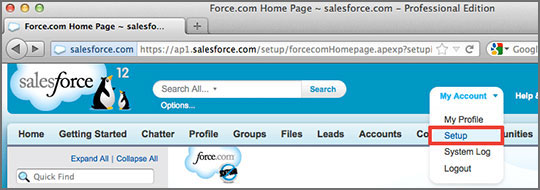
  • Select Setup from your account menu at the top right hand corner.
salesforce-01

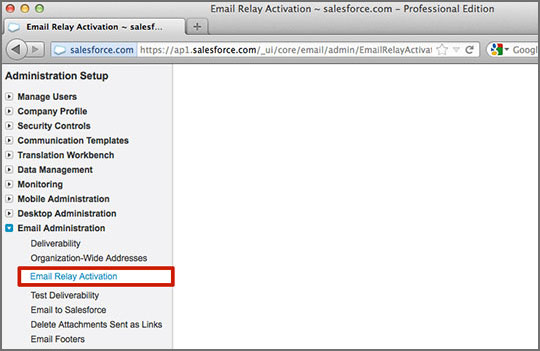
  • Choose Email Relay Activation from the LHS menu under Administration Setup and Email Administration
salesforce-02

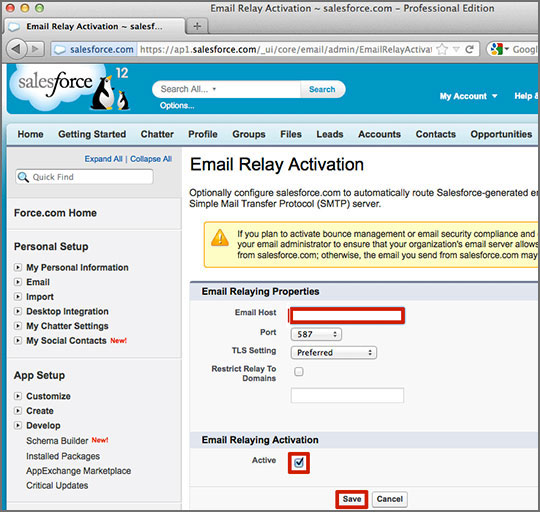
  • Enter the server address provided by Parrot Digital into the field Email Host in Email Relaying Properties. Tick the Active box under Email Relaying Activation and Click Save to complete the setup
salesforce-03

For more information on the setup of email relaying in Salesforce, please refer to the help pages on salesforce.com (https://ap1.salesforce.com/help/doc/en/email_relay.htm)

Note: If the Email Relay Activation feature is not available in your setup menu, please contact Salesforce support to enable this for your organisation.


You may now begin sending branded emails!

Share
Share

Professional Business Email Signature Software. Simple, secure and at scale.


Latest Case Studies

  • One68: Managing Multiple Brands Email Signatures and Email Banner Campaigns

    One68: Managing Multiple Brands Email Signatures and Email Banner Campaigns

  • Briggs Freeman save 100’s of email signature management hours

    Briggs Freeman save 100’s of email signature management hours

  • 30% engagement makes email banners a new top-3 traffic source

    30% engagement makes email banners a new top-3 traffic source

Parrot Digital

  • Become a Partner
  • About Us
  • Technical
  • Support
  • Privacy
  • GDPR

Contact

Australia & New Zealand:
+61 (2) 8042 8441

enquiries@parrotdigital.com.au

Rocketseed is ISO Certified

Products

  • Email Banners
  • Email Signatures

Latest Posts

  • Email Signature Manager and Software Guide: Designing Dark Mode-Safe Signatures (2026) February 3, 2026
  • Aligning Company Email Branding Across All Departments & Teams: The Power of Email Signature Software May 20, 2024
  • email customer satisfaction
    Here’s How to Measure Customer Satisfaction with Email August 23, 2022
© Copyright | Parrot Digital Solutions | All Rights Reserved
Newsletter Sign Up
We use cookies to ensure that we give you the best experience on our website. If you continue to use this site we will assume that you are happy with it.